

Flash GraphQL API
This API provides access to Flash's Bitcoin and Lightning Network payment services for the Caribbean region.
Getting Started
Follow these steps to integrate Flash payments into your application:
-
Create a Flash Account
Sign up for a Flash personal account at getflash.io.
-
Obtain API Credentials
Authentication requires a two-step process: first trigger a verification code to be sent to the user's phone with
userPhoneRegistrationInitiate, then submit the code withuserLoginto receive an authentication token. See the Authentication section below for detailed examples. -
Set Up Your Environment
// Install the Flash GraphQL client (Example in JavaScript)
npm install graphql-request graphql
-
Initialize the Client
import { GraphQLClient } from 'graphql-request'; // For development, use the test environment const endpoint = 'https://api.test.flashapp.me/graphql'; // For production // const endpoint = 'https://api.flashapp.me/graphql'; const graphQLClient = new GraphQLClient(endpoint); // After authentication, set the auth token graphQLClient.setHeader('Authorization', 'Bearer YOUR_AUTH_TOKEN'); -
Make Your First Request
const query = `
query GetMyAccount {
  me {
    id
    defaultWalletId
  }
}`;

async function fetchAccount() {
  const data = await graphQLClient.request(query);
  console.log(data);
}

fetchAccount();
For detailed examples of common use cases, refer to the Full API Reference.
Authentication
Flash API uses JSON Web Tokens (JWT) for authentication. Most API operations require authentication to identify the user and determine their permissions.
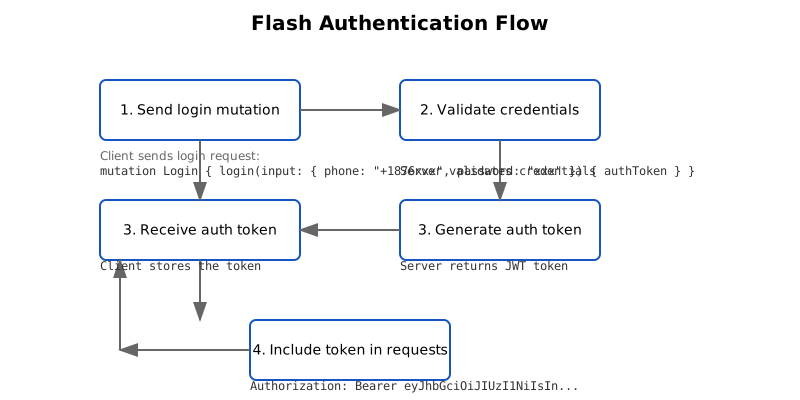
Authentication Process
Flash uses a two-step phone verification process for authentication:
-
Step 1: Initiate phone verification by sending a
userPhoneRegistrationInitiatemutation with the phone number:mutation { userPhoneRegistrationInitiate(input: { phone: "+1234567890" }) { success errors { message } } }This will trigger a 6-digit code to be sent via SMS to the specified phone number.
-
Step 2: Verify the code and obtain auth token by sending a
userLoginmutation with the phone number and verification code:mutation { userLogin(input: { phone: "+1234567890", code: "123456" }) { authToken errors { message } } }Upon successful verification, an authentication token will be returned.
-
Store the auth token securely in your application.
The token is valid for 7 days. For security reasons, do not store it in localStorage in browser environments.
-
Include the token in all subsequent API requests via the Authorization header:
Authorization: Bearer YOUR_AUTH_TOKEN
-
Handle token expiration by implementing appropriate error handling:
// Check for authentication errors
if (error.message === 'Unauthorized' || error.message === 'Token expired') {
  // Repeat the authentication process to get a new token
}
Security Best Practices
- Never expose your auth token in client-side code or URLs
- Use HTTPS for all API communication
- Implement token refresh logic before expiration
- Validate the token on your server before using it
Query Example
Fetch account details and wallet balances:
Mutation Example
Create a Lightning invoice:
Error Handling
The API returns errors in the following format:
{
  "data": { ... },
  "errors": [
    {
      "message": "Error message",
      "locations": [{ "line": 2, "column": 3 }],
      "path": ["fieldName"]
    }
  ]
}